How to Import Financial Aid PeopleSoft Equations
Overview/Purpose
This Standard Operating Procedure (SOP) defines the controlled process for importing Financial Aid equations into PeopleSoft. Financial Aid equations drive eligibility, need analysis, packaging logic, and awarding calculations. Because these configurations directly impact student aid eligibility and fund disbursement, imports must be executed with precision and proper oversight.
The purpose of this procedure is to ensure equation imports are performed consistently across environments (Development, Test, Production), in accordance with established change management practices. A standardized import process protects data integrity, prevents unintended overwrites, maintains regulatory compliance, and supports audit readiness. This SOP also ensures that all imported logic is validated, documented, and approved before being relied upon in live awarding cycles.
All financial aid equations start with FQ. The third letter will be an F for even year equations (FQF) or a G for odd year equations (FQG). The fourth letter an S for selection equations or an A for amount equations. Selection equations determine if a student should be selected for the aid. Amount equations determine how much a student should receive.
Trigger
This procedure is initiated when Financial Aid equations must be imported into PeopleSoft as part of a planned migration, configuration change, environment refresh, system implementation, vendor update, or restoration effort. It must also be triggered when deploying approved changes from Development or Test into Production, or when restoring equation logic following data corruption, rollback, or disaster recovery activities.
SET LOG \\Client\C$\Temp\FQ_IMPORT.LOG;
SET INPUT \\Client\C$\Temp\FQ_EXPORT.DAT;

DELETE PS_EQUATION_TBL	  WHERE EQUATION_NAME LIKE 'FQ%';
DELETE PS_EQUATION_DTL	  WHERE EQUATION_NAME LIKE 'FQ%';
DELETE PS_EQTN_TEST_DATA  WHERE EQUATION_NAME LIKE 'FQ%';
DELETE PS_EQUATION_PCODE  WHERE EQUATION_NAME LIKE 'FQ%';
DELETE PS_SCC_APPL_PRMPT  WHERE EQUATION_NAME LIKE 'FQ%';
DELETE PS_EQTN_ID_NAMAUTH WHERE EQUATION_NAME LIKE 'FQ%';
DELETE PS_EQTN_SQL_TBL	  WHERE EQTN_OPERAND_SQL LIKE 'FQ%';
DELETE PS_EQTN_SQL_CHUNKS WHERE EQTN_OPERAND_SQL LIKE 'FQ%';
DELETE PS_EQTN_SQ_SQLAUTH WHERE EQTN_OPERAND_SQL LIKE 'FQ%';

IMPORT PS_EQUATION_TBL;
IMPORT PS_EQUATION_DTL;
IMPORT PS_EQTN_TEST_DATA;
IMPORT PS_EQUATION_PCODE;
IMPORT PS_SCC_APPL_PRMPT;
IMPORT PS_EQTN_ID_NAMAUTH;
IMPORT PS_EQTN_SQL_TBL;
IMPORT PS_EQTN_SQL_CHUNKS;
IMPORT PS_EQTN_SQ_SQLAUTH;
Steps
- Open Data Mover.
- The Data Mover application can be opened by logging into the CMS Citrix server.
- There is a link on the OIT Tools dashboard under “The CSU” on the https://my.csustan.edu portal.
- You will need to be logged into the Cisco AnyConnect VPN.
- Log into Citrix with your CMS Data Center account. You’ll probably need to get your password because the password on these account are reset every day. Go here to get your password: https://myapplications.microsoft.com/
- Log into Data Mover with a PeopleSoft username and password. Your AD/Shibboleth credentials won’t work.
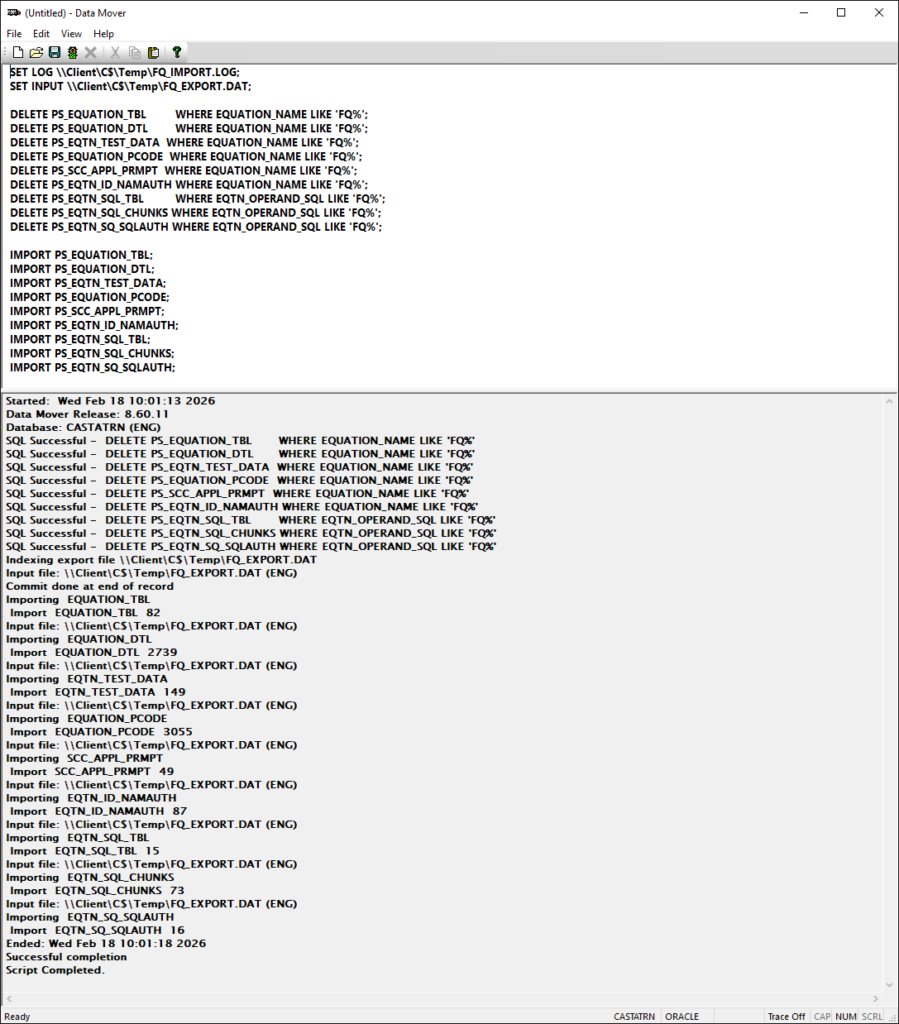
- Copy and paste the script above into Data Mover. As it is written, the input will come from the Temp folder on your C drive. Adjust the SET INPUT line if you want it to come from a different folder and/or filename.
- Click the Traffic Light button to import the equations.
Outputs
Below is a screenshot of Data Mover after an import.